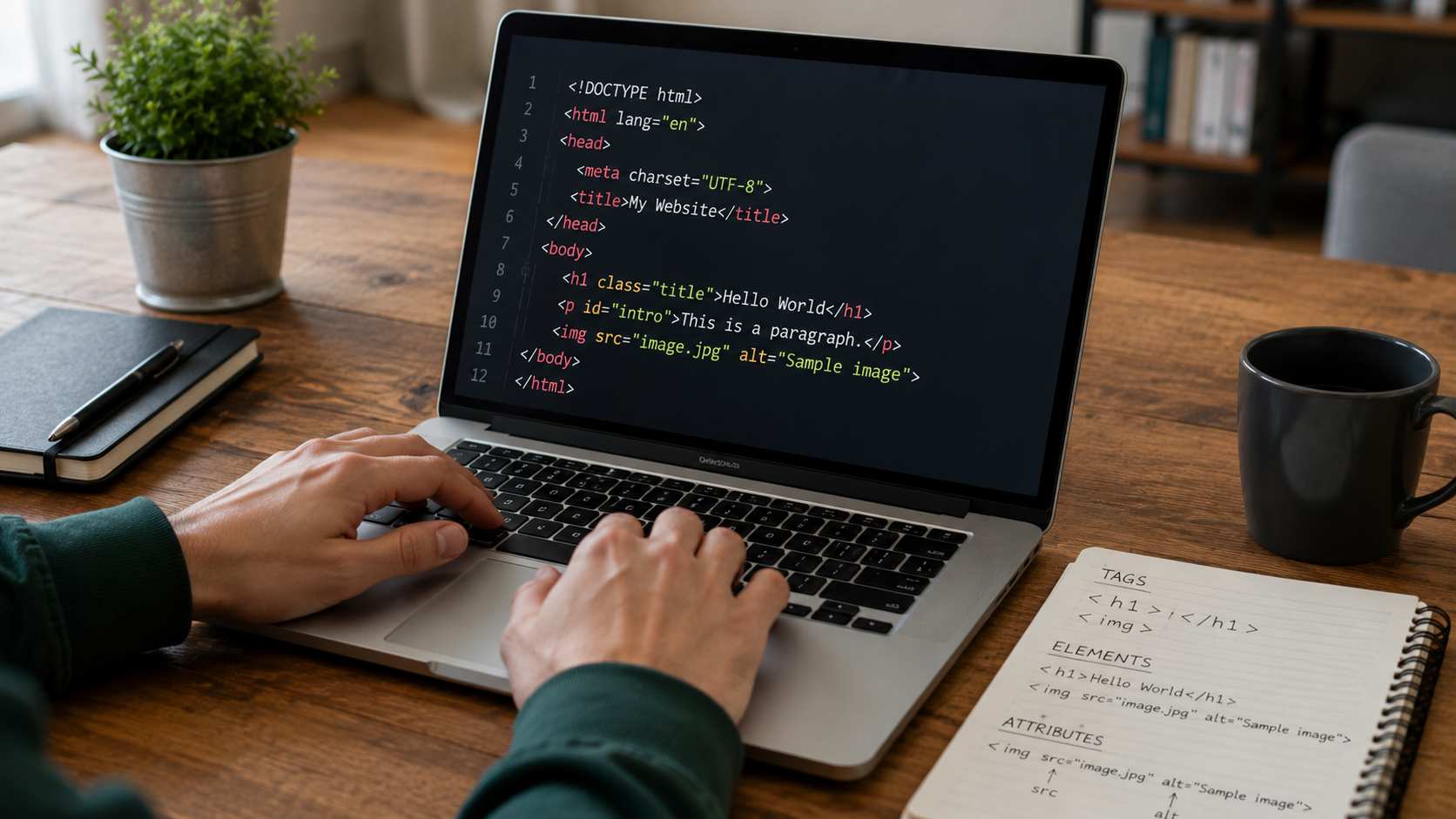
Placing an image on a page is one of the first things anyone learns, and the element has more depth than its two attribute reputation suggests. Several of its behaviours only become visible when something goes wrong, which is precisely when you need to understand them.
The basic form
The image element is a void element, so it has no closing tag and no content. Everything it needs comes from attributes.
<img src="/assets/images/diagram.png" alt="A tree diagram of a DOM structure">Two attributes are required by the specification. The source attribute holds the path to the file, and the alt attribute holds the text alternative. Omitting the alt attribute is a validation error, and it is the omission that appears most often in real code.
How the image is replaced, not contained
The image element is what the specification calls a replaced element. Its content comes from outside the document entirely and the browser substitutes the file in place of the element. This explains several behaviours that otherwise look arbitrary.
It is inline by default, which means it sits in a line of text and is affected by line height, producing the small gap underneath an image that puzzles people the first time they try to sit one flush against a container. Setting its display to block, or giving the container a line height of zero, removes that gap. It also has intrinsic dimensions, meaning it knows its own natural size, which is why an image with no CSS renders at its file dimensions rather than filling its parent.
What happens when the file is missing
A failed image does not disappear. The browser displays a broken image indicator and, crucially, renders the alt text in its place. This is the behaviour that makes alt text useful to far more people than screen reader users alone.
Anyone on a slow or unreliable connection, anyone whose corporate network blocks an image host, and anyone who has disabled images to save data will see that text instead of the picture. Descriptive alt text keeps the page comprehensible for all of them. An empty or missing alt leaves them with nothing.
Always set width and height
This is the advice that reversed itself. For years the guidance was to omit the dimension attributes and control size entirely in CSS. That advice is now wrong, and modern browsers depend on those attributes.
<img src="/assets/images/chart.png" alt="Quarterly revenue chart" width="800" height="450">The reason is layout shift. Without dimensions, the browser has no idea how tall the image will be until the file arrives, so it reserves no space. When the image loads, everything below it jumps down the page. If someone was reading or about to tap a link, that jump is genuinely disruptive, and it is measured directly by the layout stability metric search engines use as a ranking signal.
Supplying the attributes lets the browser calculate the aspect ratio immediately and reserve the correct space before a single byte of the image has downloaded. The values should be the actual pixel dimensions of the file, unitless, and your CSS can still resize the image freely on top of that.
Making images responsive
The standard pairing for a fluid layout is a maximum width of one hundred percent with an automatic height.
img { max-width: 100%; height: auto; }The maximum width stops the image overflowing its container on a narrow screen, and the automatic height preserves the aspect ratio rather than squashing it. Note that setting height to automatic overrides the height attribute for rendering, while the browser still uses the attribute pair to work out the ratio ahead of time. Both mechanisms coexist deliberately.
The title attribute is not a caption
A title attribute on an image produces a tooltip and is a poor place for information, for all the usual reasons: no touch support, no keyboard access, inconsistent announcement. It is also frequently added as a duplicate of the alt text, which causes some screen readers to announce the same words twice.
If an image needs a visible caption, the figure and caption elements exist for exactly that and put the text on the page where everyone can read it.
Decoding and loading hints
Two attributes influence how the browser handles the image. The loading attribute set to lazy defers offscreen images until the user scrolls near them. The decoding attribute set to async lets the browser decode the image off the main thread, which can reduce blocking on image heavy pages.
Neither should be applied blindly to every image. Lazy loading the image at the top of the page delays the thing the visitor came to see, which makes the page feel slower rather than faster.